

This page is about connecting external agents to OpenOps. For the AI assistant built into OpenOps, see AI Assistance.
Prerequisites
- An OpenOps environment with the MCP server enabled.
- A user account in that OpenOps environment.
- An AI agent that can connect to remote MCP servers and sign in through your browser, such as Claude Code, Codex, Cursor, Visual Studio Code, or the Claude app.
<YOUR_OPENOPS_HOST> with the host you use to open OpenOps in your browser.
Connecting your agent
There are two ways to add the OpenOps MCP server to an agent: run the agent’sadd command, or add an entry to its configuration file. Both point the agent at the same URL. The first time the agent uses the server, it starts the authorization flow in your browser.
Claude Code
Claude Code
Run the following command:Alternatively, add the server to Claude Code opens the authorization page in your browser the first time it uses the server. If it doesn’t, run
.mcp.json in your project, or to ~/.claude.json for all projects:/mcp inside Claude Code and select openops, or run claude mcp login openops from your terminal. To remove the server later, run claude mcp remove openops.Codex
Codex
Run the following commands:Alternatively, add the server to The Codex CLI, the Codex IDE extension, and the ChatGPT desktop app share this configuration file.
~/.codex/config.toml:Cursor
Cursor
Add the server to Cursor opens the authorization page in your browser when it first connects to the server.
~/.cursor/mcp.json to make it available in all projects, or to .cursor/mcp.json inside a project:Visual Studio Code
Visual Studio Code
Open the Command Palette, run MCP: Add Server, choose the HTTP option, and enter the server URL. Alternatively, add the server to
.vscode/mcp.json in your workspace:Claude
Claude
In the Claude desktop or web app, go to Settings → Connectors, click Add custom connector, enter the server URL, and click Add. Then click Connect next to the OpenOps connector to authorize. To remove it later, open the connector’s menu and choose Remove.
Other clients
Other clients
Any client that can connect to a remote MCP server works with the same URL. Add the server the way you add other remote MCP servers in that client, then complete the authorization in your browser.
Authorizing access
When your agent connects to the OpenOps MCP server for the first time: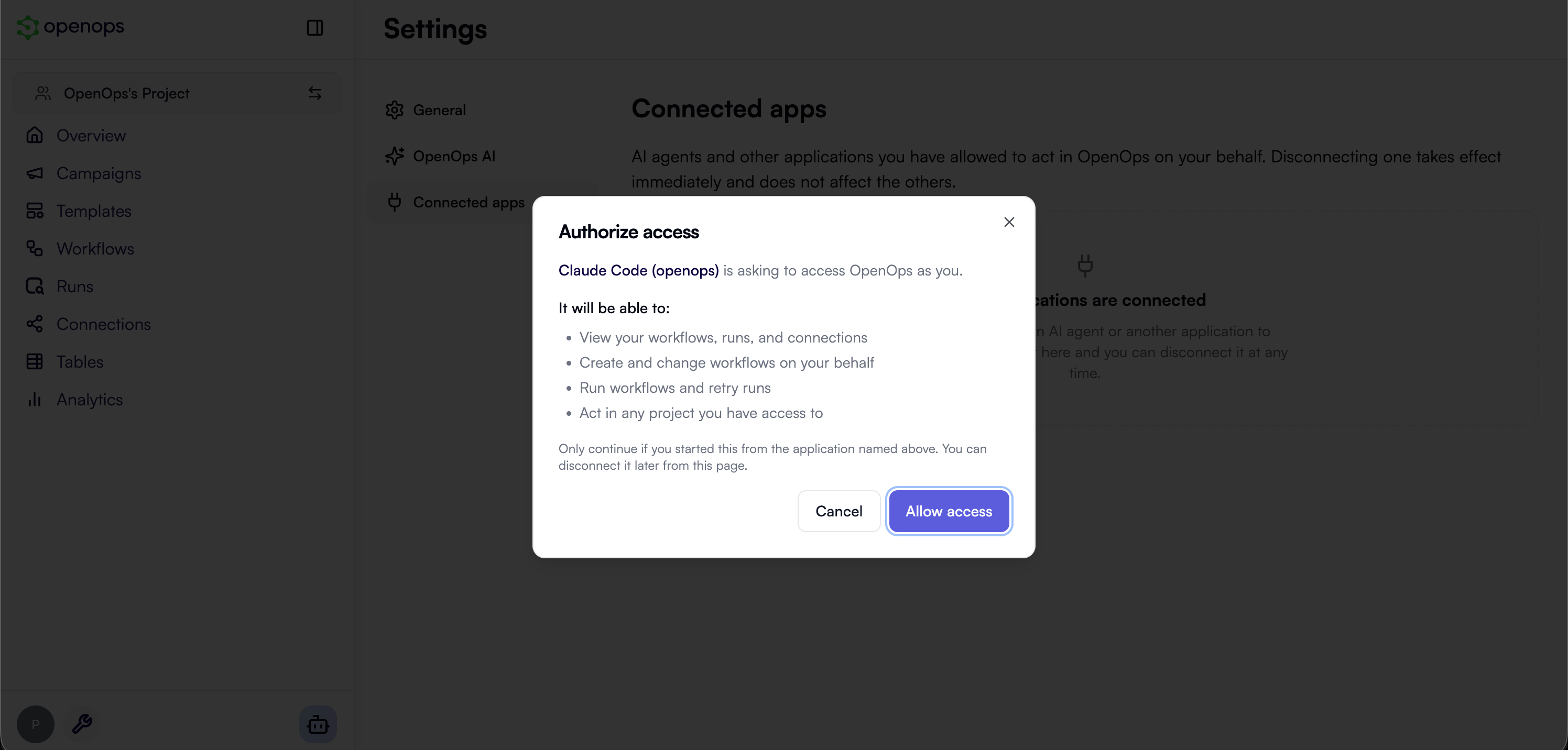
- The agent opens OpenOps in your browser. If you’re not logged in, log in first.
- OpenOps shows the Authorize access dialog on the Connected apps settings page. The dialog names the application asking for access and lists what it will be able to do:
- View your workflows, runs, and connections
- Create and change workflows on your behalf
- Run workflows and retry runs
- Act in any project you have access to
- Click Allow access. The browser returns control to the agent, which now has access to the OpenOps tools. To deny the request, click Cancel or close the dialog.
Only approve requests you started: The dialog shows the name of the application asking for access. If you didn’t start connecting from that application, click Cancel.
Using your agent with OpenOps
Once connected, ask your agent about your OpenOps environment in plain language. For example:- “Which workflows are enabled in my OpenOps environment, and what do they do?”
- “Show me the failed runs of the EBS gp2 to gp3 migration workflow from this week and explain why they failed.”
- “Retry the run that failed this morning.”
- “Which connections does the Slack notification workflow use?”
- “Create a workflow that finds unattached Elastic IPs every Monday and posts them to Slack, then test the first step.” (Enterprise edition)
- “Switch to the Production workspace and list its workflows.” (Enterprise edition)
What the agent can do
The tools available to the agent depend on your OpenOps edition. See pricing for the differences between editions.Workspaces (Enterprise edition): An authorized agent isn’t limited to one workspace. Name the workspace you want to work in, and the agent passes it along with each request. If you don’t name one, the agent acts in your default workspace.
Managing connected apps
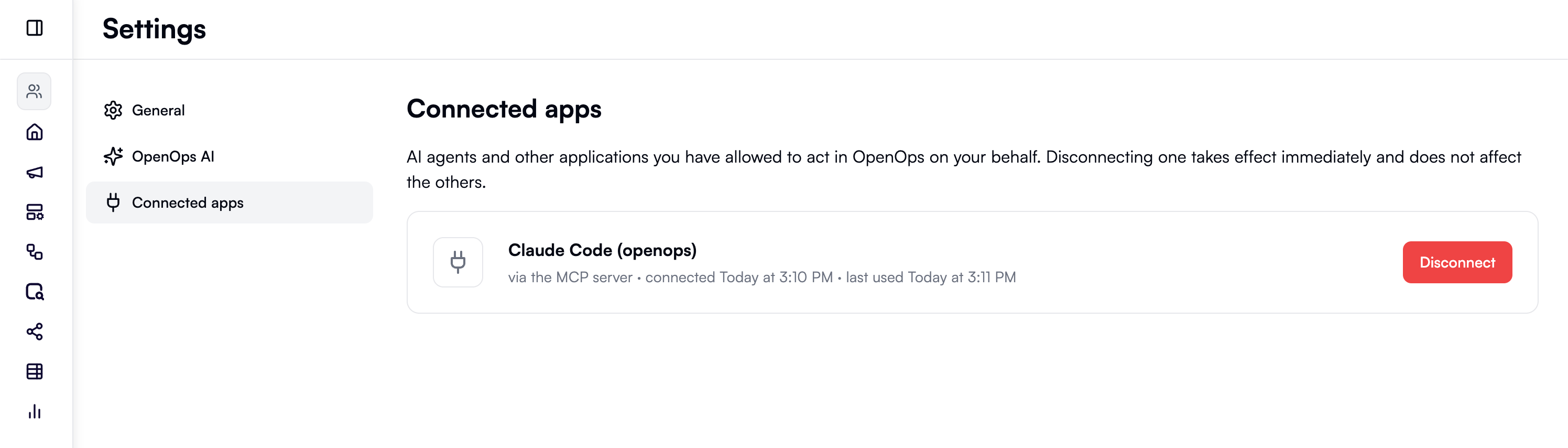
- In the OpenOps left sidebar, click the Settings icon at the bottom.
- In the Settings view, click Connected apps. Each entry shows the application name, when it was connected, and when it was last used. If you connect the same agent from two machines, you see two entries.
- To revoke access, click Disconnect next to an entry and confirm. The agent loses access immediately and has to be authorized again to reconnect. Other connected apps aren’t affected.
Troubleshooting
- The agent reports that the server needs authentication: Run the agent’s login step, such as
/mcpin Claude Code orcodex mcp login openops, and check that the server URL ends with/mcp. - The browser shows “This authorization request cannot be completed”: The request has expired or has already been used. Connect again from your agent.
- Tool calls fail with an authorization error after working before: The agent was disconnected in Connected apps, your user account was deactivated, or the agent hasn’t been used for 30 days. Connect again from your agent.
- The agent works in the wrong workspace (Enterprise edition): Name the workspace in your prompt. See the note in What the agent can do.